LANGLEY SECONDARY SCHOOL

YEAR 2026

REUNION

CLASS 2011

15

Saturday, October 17th, 2026

8:30pm PST

Zoom

00
Days

00
Hours

00
Minutes

00
Seconds

The simplest way to make sure you don't miss the reunion is to sign up for text message notifications. See below.

The pandemic derailed our 10-year bash, but 15 years is the perfect recharge.

Join us for a fun, low-pressure Zoom hangout where we can catch up on where each of our lives has taken us.

I hope to see you there!

Add to your calendar Send me a message
Get text message notifications

Agenda (Times are approximate)

8:00pm (PST)

Virtual Tailgate (optional)

Let’s relive Friday night lights from the comfort of our own homes. We’re starting the 15-Year Reunion with a virtual tailgate to shake off the awkward and bring back the school spirit.

This can also be a great opportunity to test your microphone and camera settings before the main event.

8:30pm (PST)

Kickoff

Welcome home, Class of 2011! This is the official start of our 15-Year Reunion and your buffer zone for latecomers, tech hiccups, and refilling your drink from the tailgate.

  1. Welcome: I will speak to everyone to begin the event and drive up the anticipation. It will finish with a toast to the class of 2011.
  2. Settle-in window: This allows everyone to get comfortable and familiarize themselves with the platform before diving into the main event.
  3. Group photo: We’ll grab a full-group screenshot early as we may lose some of you throughout the night.
  4. Jacob's story: I will tell my story to give you ideas of what to share in yours during the Icebreakers session.

The goal is to ease us from the tailgate into the reunion. Laugh a little, get oriented, and make sure no one feels like they missed the start.

(10-minute break)

8:45pm (PST)

Icebreakers

This is the heart of the night. No grades, no roll call, just real updates from real people. Each of you gets the floor for a snapshot of life since caps and gowns.

  1. Spotlight: Share whatever you want: career moves, cities you’ve called home, family, grad school, plot twists, or passions you found after 2011.
  2. Pass or play: Not feeling chatty? You can pass, drop it in the chat, or just say hi. Zero pressure.
  3. I will call names: I will work through the list of Zoom participants, giving everyone the opportunity to speak.

(10-minute break)

TBD

Breakout Room Roulette

Time to mix it up! You will be placed into random groups of classmates. It’s the easiest way to catch up with people you knew well, kind of knew, or never got the chance to talk to. It’s also a great way to break up the event and give everyone a chance to connect with different classmates.

Get past the small talk fast and remind us how much we actually have in common after 15 years.

(10-minute break)

TBD

Closing Toast

Let’s bring everyone back together to wrap the official program and end the night with intention. This is our chance to close the reunion on a high note and look ahead, not just back.

  1. Class reflections: I’ll share a few themes that came up tonight: paths we didn’t expect, wins we’re proud of, and how different we all are but how familiar it still feels.
  2. Forward focus: Answer the following question: "What’s one thing you’re building toward in the next five years?" No one has to share out loud, but sit with it.
  3. Group toast: Raise whatever’s in your glass to the people we were, the people we’ve become, and the people we haven’t met yet.
  4. Keep it going: Quick info on the alumni group chat, next mini-reunions, and how to stay connected so this isn’t another 15-year gap.

Let's send everyone off feeling proud of their own story and curious about what comes next. We came here to remember high school. We leave remembering we’re still in the middle of the story.

TBD

Night Owl After-Party (optional)

For everyone who isn’t ready for bed when the official program ends, the Night Owl After Party is unstructured hangout time.

  1. Breakouts on demand: If a few of you want to spin off, I’ll open rooms as needed.

End the reunion the way we used to end dances: hanging around because the company was the best part anyway.

RSVP (optional, but recommended)

Are you planning to attend?*

Learn Zoom

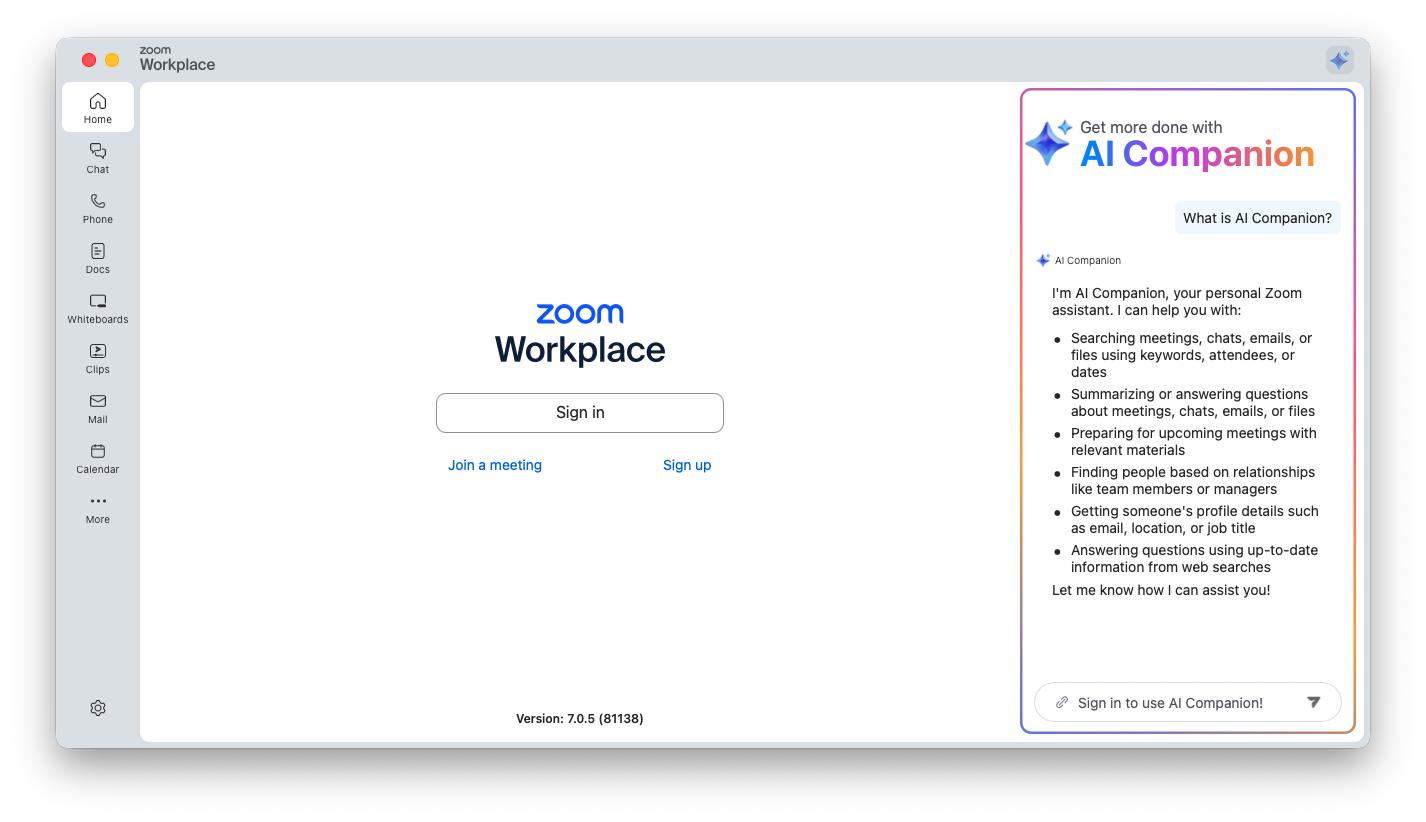
  1. Go to https://zoom.us/download
  2. Download Zoom for your desired platform.
  3. After installing, open Zoom.

Joining the Reunion

  1. Click on the "Join a meeting" button. Join Zoom interface
  2. Enter the meeting ID and password provided in the calendar event. Join Zoom interface
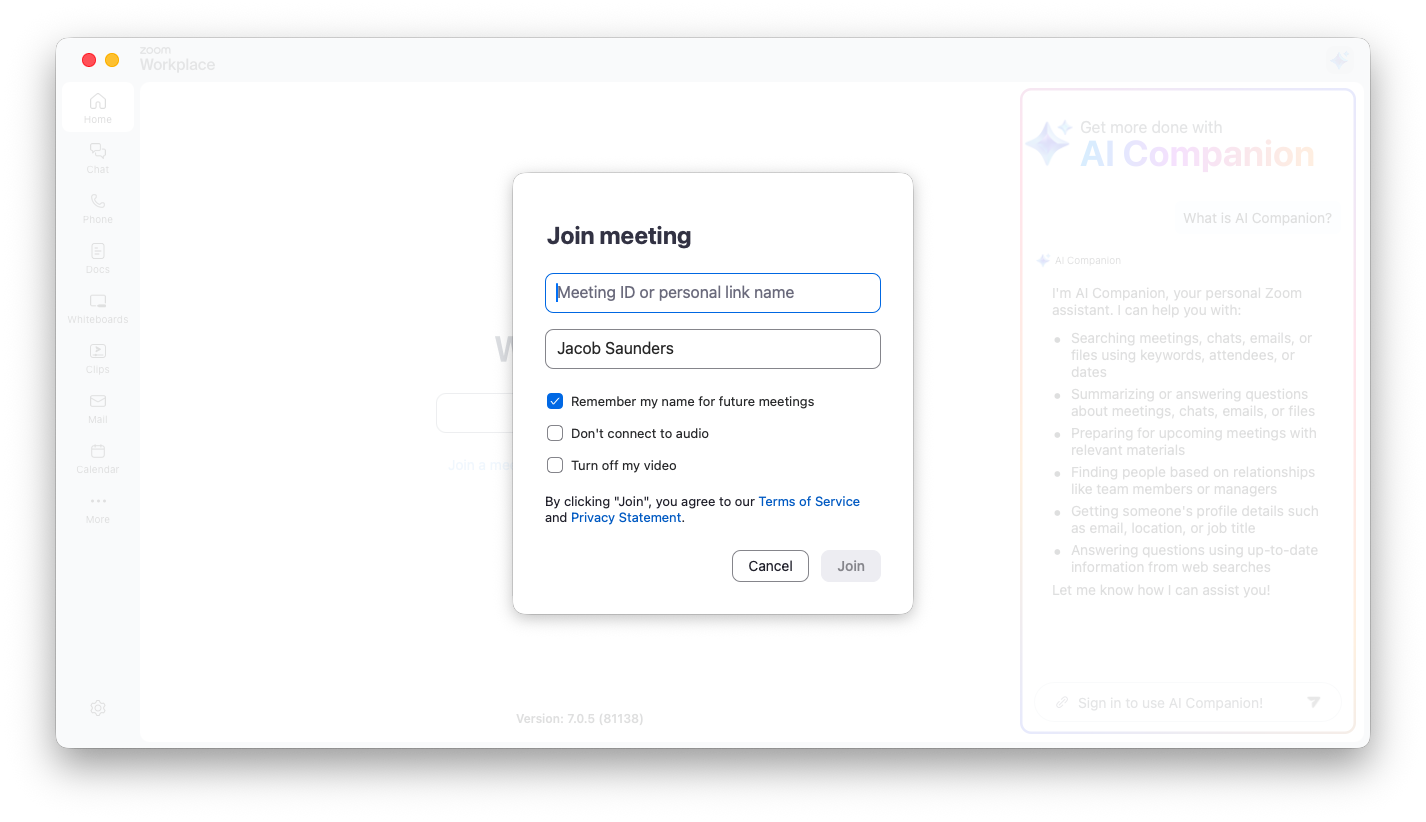
  3. Preview your webcam and microphone. Change to your desired one from the dropdown menu if necessary. Preview Zoom interface
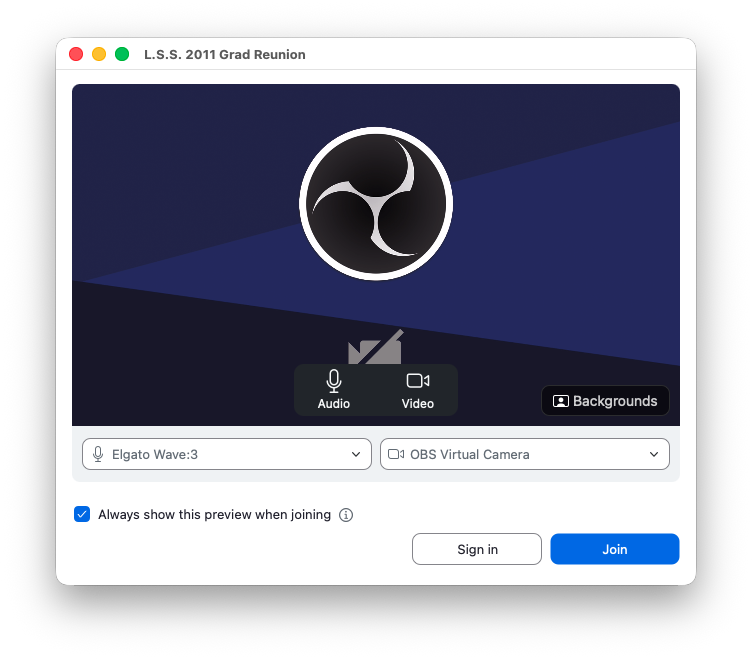
  4. You will be moved to the waiting room. Waiting room Zoom interface
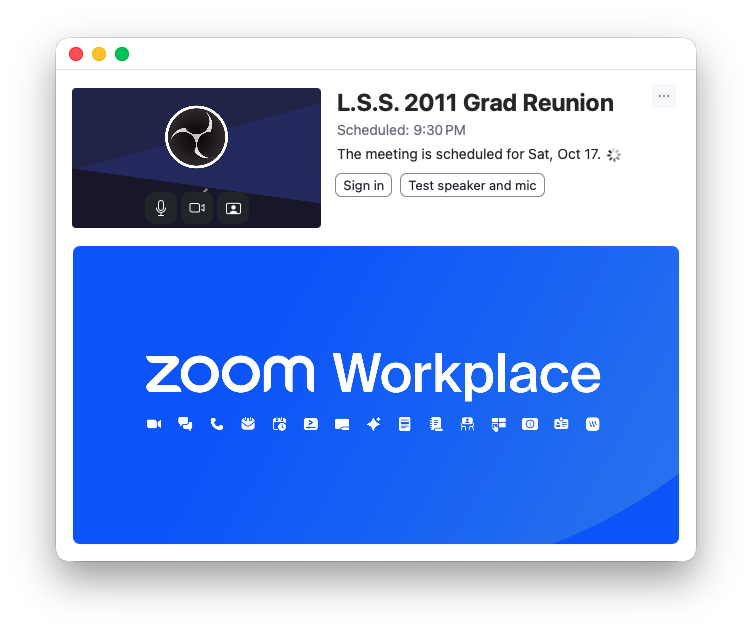
The Interface

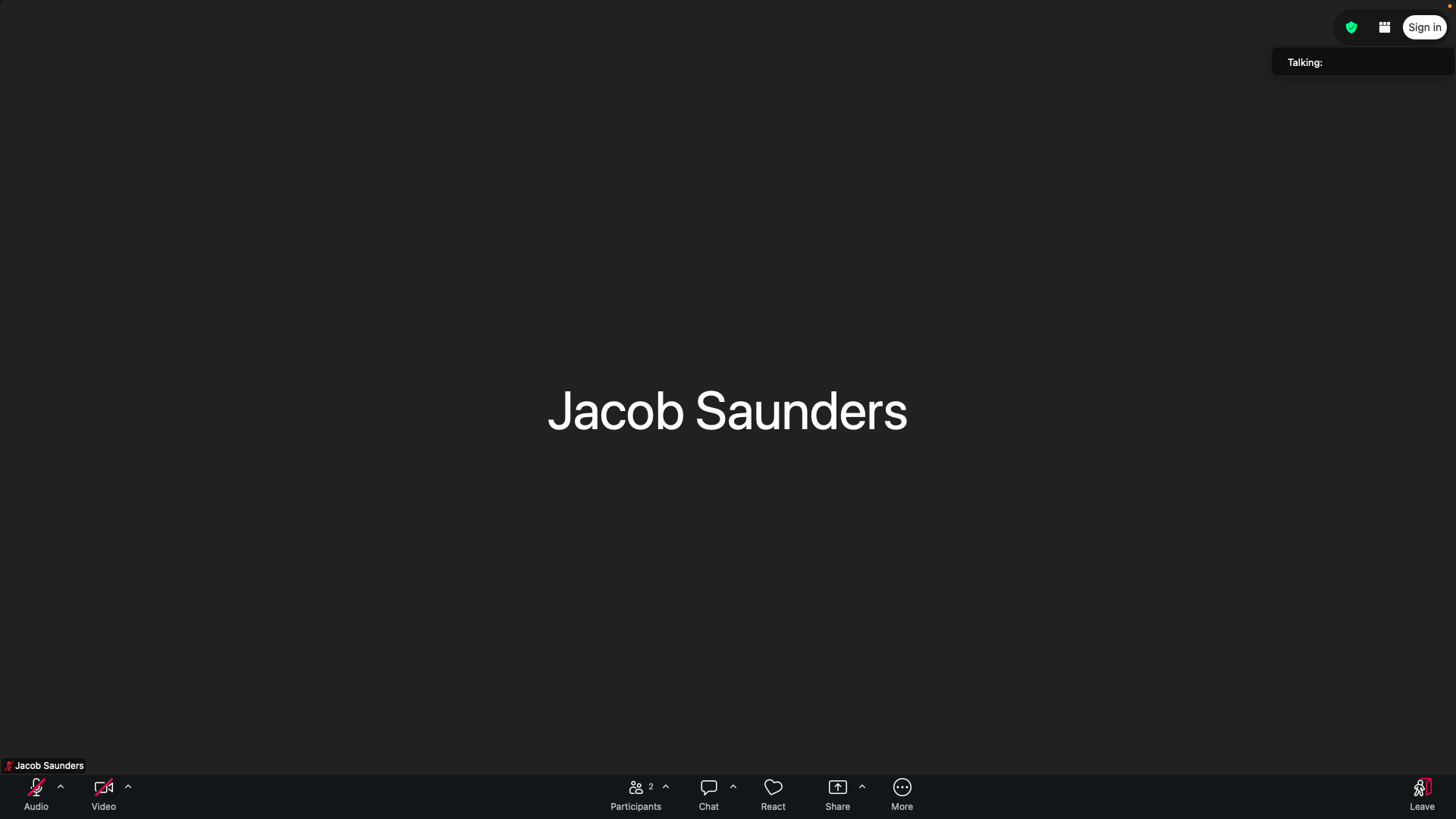
Zoom interface (Desktop)
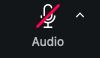
Zoom interface audio (Desktop)

Audio (Microphone Icon): Controls your microphone.

  • The red line through the icon indicates that you are currently muted. Clicking it will unmute your microphone.
  • The small up-arrow (^) next to it opens the audio settings menu, where you can select which microphone and speakers/headphones you want to use or test your audio setup.
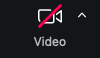
Zoom interface video (Desktop)

Video (Camera Icon): Controls your webcam.

  • The red line through the icon indicates that your camera is currently turned off. Clicking it will turn your video on.
  • The small up-arrow (^) next to it opens the video settings menu, where you can select your camera source, choose a virtual background, or apply video filters.
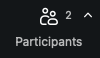
Zoom interface participants (Desktop)

Participants (Two Silhouettes): Displays how many people are currently in the meeting (currently showing two participants). Clicking this icon opens the Participants sidebar, where you can see the names of everyone in the meeting, see who is muted/unmuted, and find options to invite more people.

Zoom interface chat (Desktop)

Chat (Speech Bubble): Opens the in-meeting chat window. This allows you to type text messages, share links, or send files to everyone in the meeting at once, or send private direct messages to individual participants.
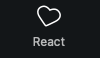
Zoom interface react (Desktop)

React (Heart Icon): Allows you to send quick, temporary emojis (like a thumbs-up, clapping hands, heart, or laughing face) that will appear floating on your screen to show feedback without interrupting whoever is speaking.
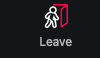
Zoom interface leave (Desktop)

Leave (Red Icon with walking person): Allows you to exit the meeting. Clicking this will bring up a confirmation prompt to leave the call.

  1. Go to the App Store or Google Play Store
  2. Search for "Zoom Workplace" and download the app.
  3. After installing, open Zoom.

Joining the Reunion
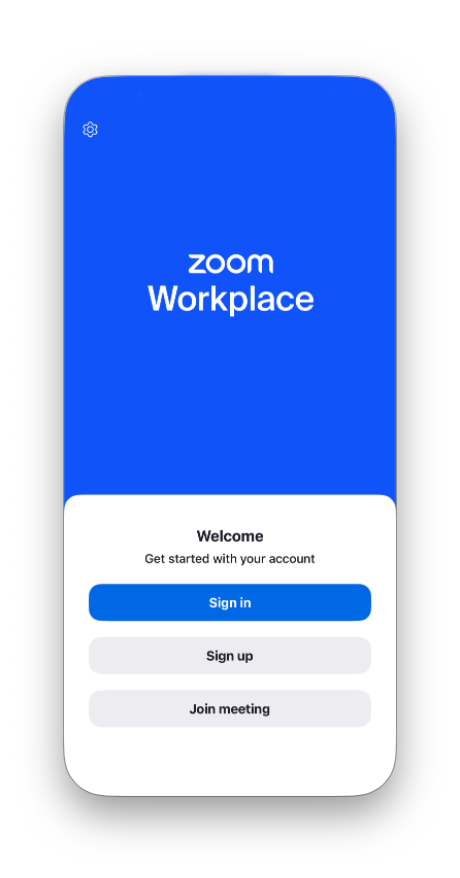
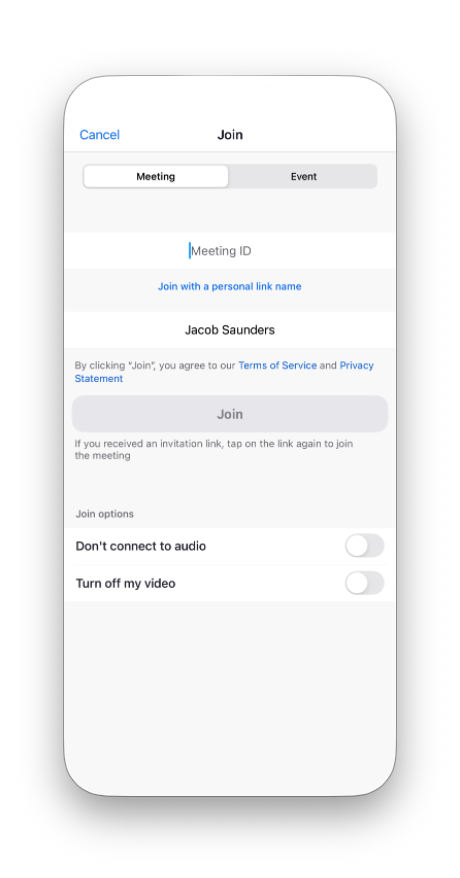
Join Zoom interface Join Zoom interface Preview room Zoom interface
  1. Click on the "Join meeting" button to enter the meeting.
  2. Enter the meeting ID and password provided in the calendar event.
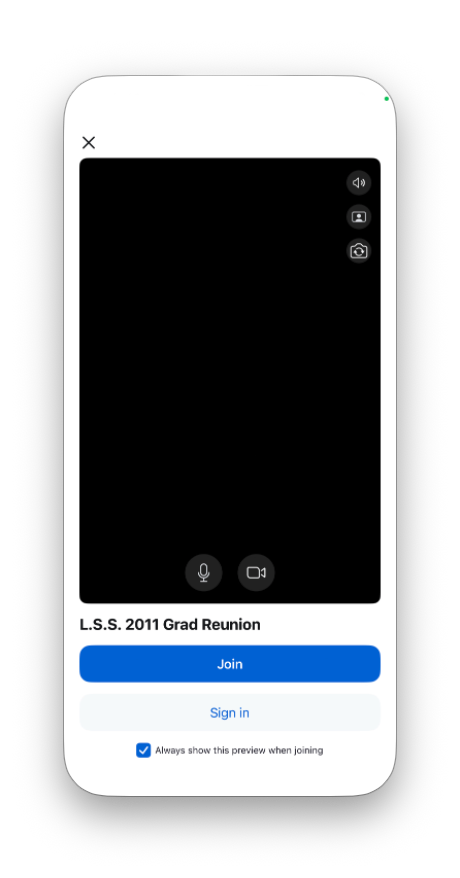
  3. Preview your webcam and microphone.
  4. You should get your call screen as the waiting room.

The Interface
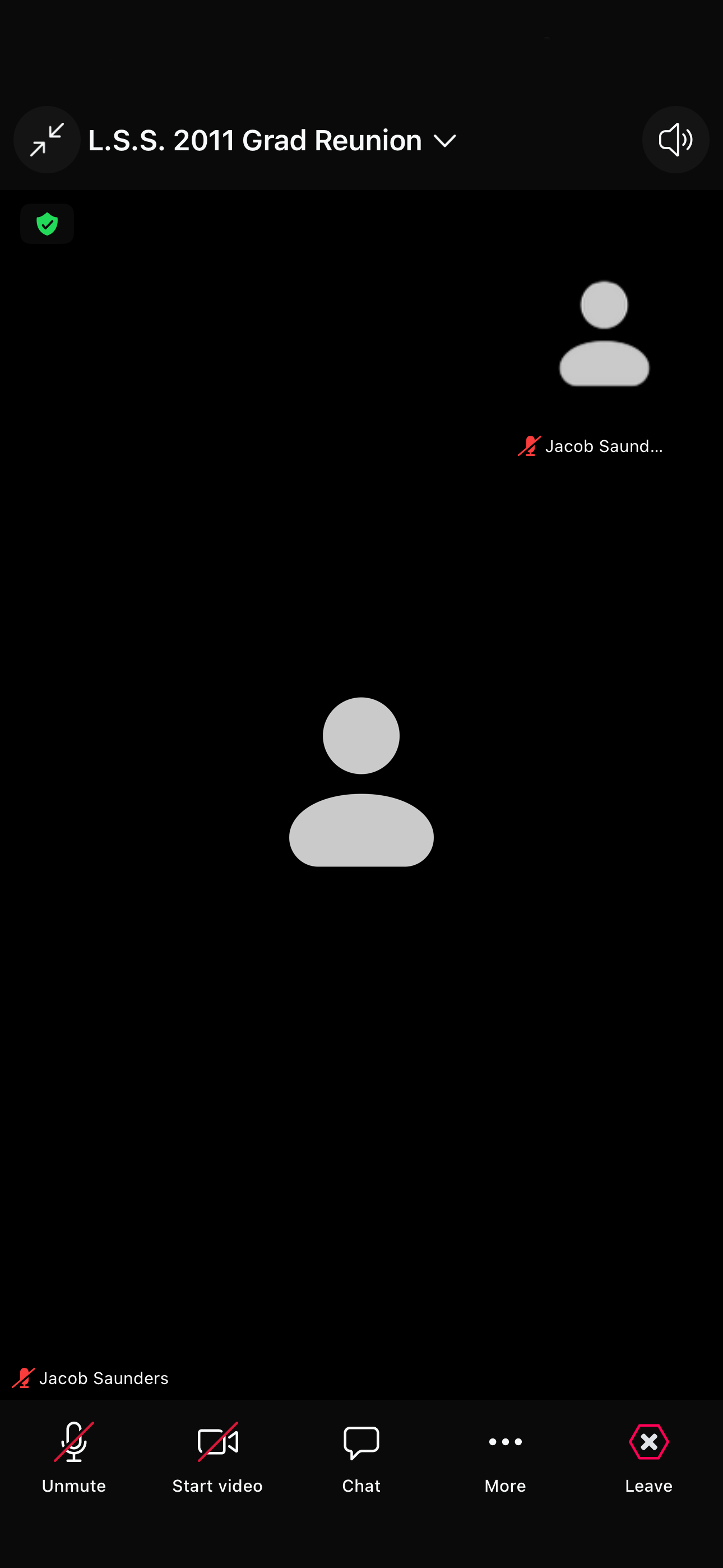
Zoom interface (Mobile)
Zoom interface minimize (Mobile)

Minimize (Diagonal Arrows Icon, top-left): Shrinks the meeting window into a small floating screen (picture-in-picture mode). This allows you to navigate other apps on your phone or different menus within Zoom while keeping the call active.

Zoom interface speaker toggle (Mobile)

Speaker Toggle (Speaker Icon, top-right): Toggles your phone's audio output. You can use this to switch the call audio between your phone's speakerphone, the internal earpiece (like a regular phone call), or connected Bluetooth headphones.
Zoom interface audio (Mobile)

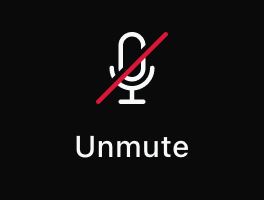
Unmute (Microphone Icon with a slash): Turns your microphone on or off. The red slash means you are currently muted. Tap it to start speaking.

Zoom interface video (Mobile)

Start Video (Camera Icon with a slash): Turns your device's camera on or off. The red slash indicates your camera is currently disabled.
Zoom interface chat (Mobile)

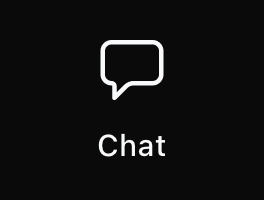
Chat (Speech Bubble Icon): Opens the in-meeting text chat window so you can read and type messages, send links, or view messages sent by other participants.

Zoom interface more (Mobile)

More (Three Dots Icon): Because mobile screens have limited space, this button opens a menu with additional features. In this menu, you will find options to:

  • View the Participants list.
  • Send Reactions or use the Raise Hand feature.
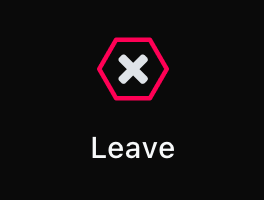
Zoom interface leave (Mobile)

Leave (Red Hexagon with 'X'): Allows you to exit the meeting. Tapping this will prompt a confirmation asking if you want to leave the call.